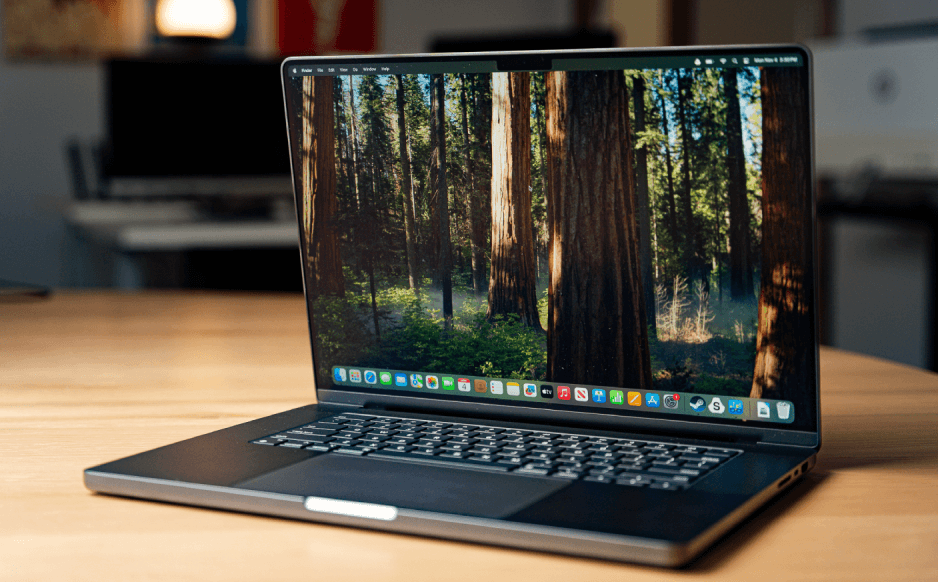
With the release of Apple’s M4 Max MacBook Pro, professionals are finally getting the external display capabilities they’ve wanted for years. But just because the M4 Max supports multiple displays doesn’t mean every dock can. This post explores how to connect three external monitors—two via Thunderbolt and one via HDMI—using the Anker Prime Thunderbolt 5 Dock (14-in-1, 140W, 8K).
I’ll walk through the configuration, limitations, and real-world setup—based on the exact questions I had when planning my own multi-monitor workspace.
My Setup
- MacBook Pro: Apple Silicon M4 Max
- Dock: Anker Prime Thunderbolt 5 Dock (14-in-1, 140W, 8K)
- Monitors:
- 2x LG UltraFine or Apple Studio Displays (Thunderbolt)
- 1x 4K HDMI Monitor or TV
Q: Can I use two Apple or LG Thunderbolt monitors in a daisy chain?
Answer: Not reliably. While older Thunderbolt 2 displays supported daisy-chaining, modern Thunderbolt 3/4/5 monitors like the Apple Studio Display and LG UltraFine do not support daisy-chaining in macOS.
Pro Tip: Daisy-chaining multiple Thunderbolt displays isn’t officially supported on macOS—even if the hardware theoretically allows it.
Instead, connect each Thunderbolt display directly to one of the two Thunderbolt 5 downstream ports on the Anker dock.
Q: Does the Anker Prime Dock support dual Thunderbolt displays?
Yes, the dock features two full-speed Thunderbolt 5 downstream ports (120 Gbps Bandwidth Boost), making it ideal for:
- Apple Studio Displays
- LG UltraFine 5K/4K
You can connect one display per Thunderbolt port. Brightness, resolution, audio, and USB pass-through work as expected.
Q: Can I add a third display via HDMI while using the two Thunderbolt monitors?
Yes, if you’re using an M4 Max. Apple lists support for up to 4 external displays:
- 3 via Thunderbolt
- 1 via HDMI
That makes the triple monitor setup completely achievable.
The Anker Prime dock includes an HDMI 2.1 port. But for maximum GPU bandwidth and compatibility, you might prefer using the MacBook’s built-in HDMI port for the third display.
Recommended Cabling Diagram
| Device | Cable | Port |
|---|---|---|
| Dock to MacBook Pro | TB5 cable | TB5 upstream (dock) → TB port (Mac) |
| Thunderbolt Monitor #1 | TB3/TB4 cable | TB5 downstream port 1 (dock) |
| Thunderbolt Monitor #2 | TB3/TB4 cable | TB5 downstream port 2 (dock) |
| HDMI Monitor | HDMI cable | HDMI port on MacBook Pro |
Sidebar: Why Not Use the Dock’s DisplayPort Too?
The HDMI and DisplayPort outputs on the Anker dock share a single internal channel. You can use either HDMI or DP, but not both simultaneously.
Since you’re already using the two Thunderbolt ports for your primary displays, the dock’s HDMI or DP is your third display output. The MacBook’s native HDMI is often more reliable for this purpose.
Q: Will this work on M1 or M2 Macs?
No. The M1 and standard M2 chips support only one external display natively.
You’d need DisplayLink or third-party drivers for multi-monitor setups with those chips, which often come with trade-offs.
Conclusion
With an M4 Max MacBook Pro and the Anker Prime Thunderbolt 5 Dock, you can confidently run:
- 2 Thunderbolt displays via the dock
- 1 HDMI display via the Mac’s HDMI port (or dock’s HDMI, if needed)
You get full performance, resolution, and charging (140W) from a single Thunderbolt cable.
This setup is ideal for creative professionals, developers, and power users who demand maximum screen real estate without compromise.
Related Queries You Might Try:
M4 Max MacBook Pro 3 monitors external display limitApple Studio Display dual monitor setup Anker Thunderbolt 5Anker Prime TB5 dock multiple display macOS supportMacBook M4 Max HDMI + Thunderbolt monitors